Bamboo Task Master
Manage tasks, dependencies, constraints and schedules within a project or between projects.
SharePoint Task Master
Overview of Features
No more guessing when your projects will deliver.
Task management, when working on multiple projects and the resources spread across these projects is challenging, especially when the project is complex and contains tasks that depend on the successful completion of other tasks or projects. Project managers need to monitor the impact on the schedule when the due date of any task changes. Bamboo's Task Master in SharePoint offers effective schedule and resource management based on task status, priority, milestones, dependencies, and other essential project management tools.
- Create tasks based on Start Date & Due Date, Start Date & Duration, or Start Date & Work
- With Inline editing, edit task items directly in the Web Part interface
- Use the Assignment Units feature to allocate a percentage of a resource to a task
- Select specific items to focus on from the sharepoint task list in the Gantt view.
- Use the Save and Refresh options to save and undo recent changes
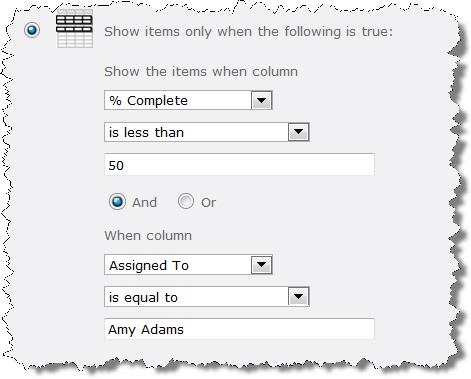
- Filter tasks to display specific criteria by selecting a different view
- Color-code tasks and milestones by priority or status.
- Set up task dependencies
- Configure columns to display in the task details grid.
- Identify task information to display with the Gantt bar.
- Insert a task directly in the Web Part
Show Critical Path - Assign Multiple Predecessors
- Exclude weekends and holidays
- Show the status of task schedules using customizable indicators
- Show the task grid, the Gantt chart, or both.
- Use Task Master with a task list from any page in the site collection
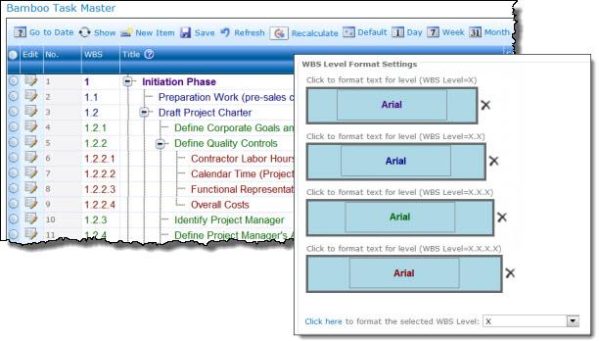
WBS numbering and formatting

Bamboo Task Master Gantt in SharePoint
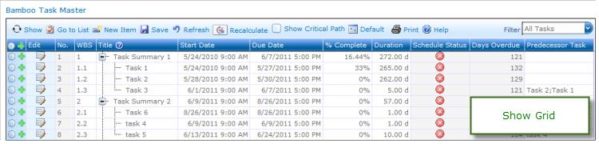
Bamboo Task Master Grid in SharePoint

Configure Workdays

Working Hours and Holidays

Insert Tasks in the Grid in SharePoint

Color Code Milestone Tasks by Status

Multiple Predecessor Tasks

Show Critical Path

Overview of the SharePoint Task Master User Interface

Color Coding for the Progress Bars
Gantt Chart Tooltips

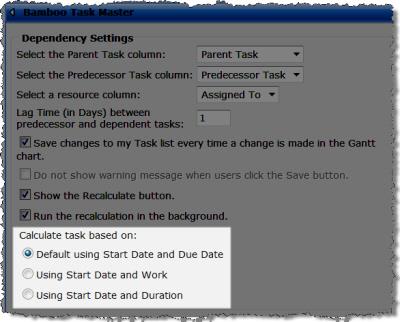
Choose How to Calculate Tasks Based On Three Options
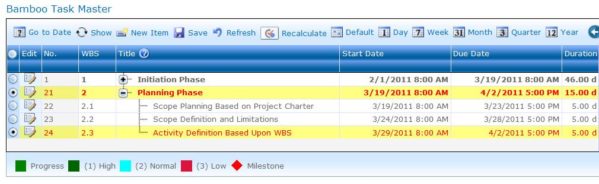
Display Only Selected Items in the Gantt Chart
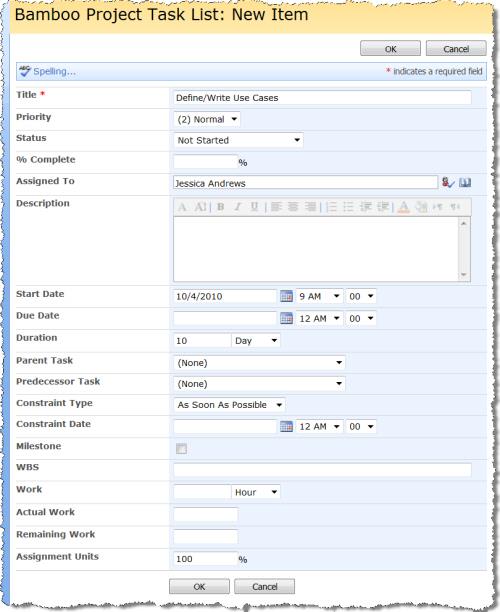
New Task Item Form
Filter Views According to Specific Criteria
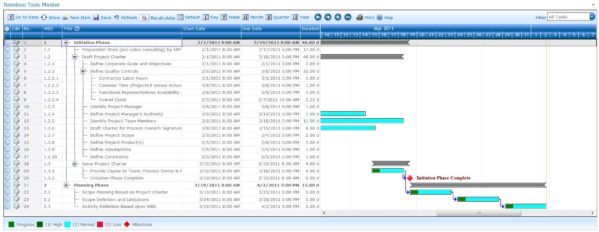
Selecting specific task items in SharePoint Task Master for SharePoint 2010

SharePoint Task Master for SharePoint 2010
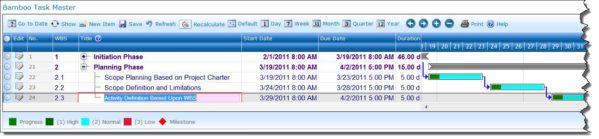
Go to Date feature in SharePoint Task Master for SharePoint 2010
More Features
Assign multiple resources to a task
Provide the option to assign multiple resources to a task.
Exclude Lunch Time
Provide the option to exclude lunch time in the project schedule.

Integrates with List Rollup Web Part
Consume data where the data source is from List Rollup and display aggregated task items from multiple sites.

Additional conditions for Adjusting Task Schedule
Additional conditions for Adjusting Task Schedule: Change task's duration, total work or due date when resource assignments are changed based on task conditions, e.g. keep duration constant, keep total work constant but increase or decrease the hours that resources work per day.

Improves the tool pane interface
Separate settings into multiple sections for easier configuration.

Provides Search option
Enable users to find task items by highlighting the tasks based on the search terms.

View Project Schedule Configuration Settings
View Project Schedule Configuration Settings from the interface without having to edit the Web Part.
Delete task items from the interface
Allow users to select and delete multiple task items from the interface.
Disable the Recalculate button
Add additional rules where if the Recalculate button is disabled, Task Master will not apply any business rules or changes. Task Master will allow users to keep the data as-is.
Exclude Weekend and Holidays
Select working days and configure a Calendar record of holidays to exclude from task scheduling.

Multiple Predecessors
Select multiple predecessors to more accurately define task dependencies.

Insert Tasks
Insert a new task above or below an existing task from directly in the task details grid.

Critical Path
Display critical path with total slack, early start, early finish, late start and late finish.

Manage Tasks from Any Page
Use the Task Master Web Part to display and manipulate task schedules using a task list from a different page.

Task and Milestone Color Coding
Color code tasks and milestones in the Gantt chart by priority or status.

Customize Web Part Options
Customize available options for the Web Part and Web Part menu: Go to List, Legends, Show Critical Path, Show Grid, Show Gantt, Insert a Task and Legends.

Compatible with Bamboo Custom Identifier Column
Works with Bamboo Custom Identifier Column.

Inline Editing
Edit items directly within the Web Part interface.

Optimized Performance
View a schedule with a large list of items in a single view without impacting performance.

Adjustable Columns
Adjust the width and order of columns in the task details grid.

Customizable Gantt View
Configure the Gantt chart to display tasks starting with "Today" or from a specific date.

Flexible Task Assignments
Create tasks based on options such as Start Date & Due Date, Start Date & Duration, or Start Date & Work.
Resource Allocation
Use the Assignment Units feature to allocate a percentage of your resource to a project or task—for example, as little as 25% or as much as 100%.

Undo Option
Made a mistake updating a task? No problem! Use the Refresh option to undo recent changes.

Set Task Constraints
Set task constraints such as Must Start On, Start No Earlier Than, Start No Later Than and As Soon As Possible.

Glossary and Help Section
Unfamiliar with task-management terms? Task Master now features a Glossary and Help section for improved usability.
Configurable Duration Column
Set the Duration column to display work in minutes, hours or days.

Expand or Collapse Subtasks
Set Task Master to automatically expand or collapse tasks with subtasks.
Calculate % Complete
Calculate the task summary's % complete based on the subtasks.
Finish-to-Start Dependencies
Assign Finish-to-Start dependencies between tasks.

Display WBS
Show the Work Breakdown Structure (WBS) of project tasks.

Direct Editing in Gantt View
Create, edit or delete tasks directly from the Gantt view.

Bamboo Project Task List
Task Master automatically creates the Bamboo Project Task List when you add Task Master to a page so that you can begin setting up your project tasks immediately after configuring the Web Part.

Color-Coding
Color-code any choice column available in the Bamboo Project Task List or your own existing list. Color-code the progress bar and choose which column contains the progress bar information.
How Does it Work?
SharePoint Master Task Manager allows you to see tasks and milestones hierarchically, with dependencies and related task information, in a task details grid and Gantt chart view. Display only the task information you choose, in the order and level of detail you need. Task data is stored in the Bamboo Project Task List or in a task list of your choice, anywhere in the SharePoint site collection.
To use SharePoint Online Task Manager:
Step 1: Add the SharePoint Web Part to a page and configure it.
Add the SharePoint Bamboo Task Master Web Part to a page and open the tool pane to select a task list, set working hours and holidays, and define Gantt chart and grid view options.
Step 2: Add tasks to the SharePoint page.
To start adding tasks, click the New Item button and enter task information. Indicate whether the task is a Parent Task (i.e., Summary Task), has Predecessor Tasks that must be completed before this task can start, or is one that has constraints like Start No Later Than or Must Start On a specific date.
Step 3: Manage tasks using the task grid and Gantt views in SharePoint.
In the Task Master Web Part, edit tasks, switch views (i.e., Day, Week, Month, Quarter, or Year), or filter the tasks displayed by selecting a different task list view. Print the task details grid or Gantt chart, zoom the timescale in or out to view more or less task detail, show the critical path, and more.

Pricing
The SharePoint product is available and fully supported as a perpetual license as an individual purchase. Non-Production environments are ½ price. Education and Non-Profit pricing is available, please contact sales.
SharePoint 2016/2019/SPSE
$2,468.00
Price in USD
per Server Running MS Foundation Web Application. More Information ›
Includes Year 1 Product Upgrades and Support*