SharePoint Online

The cloud parts are functional components that extend your SharePoint Online environment in Microsoft 365.

Supports Modern sites for SharePoint Online/Microsoft 365

View All Products

Small Business Pricing and Discounts

Learn More

Subscription Pricing

Web Part Subscription
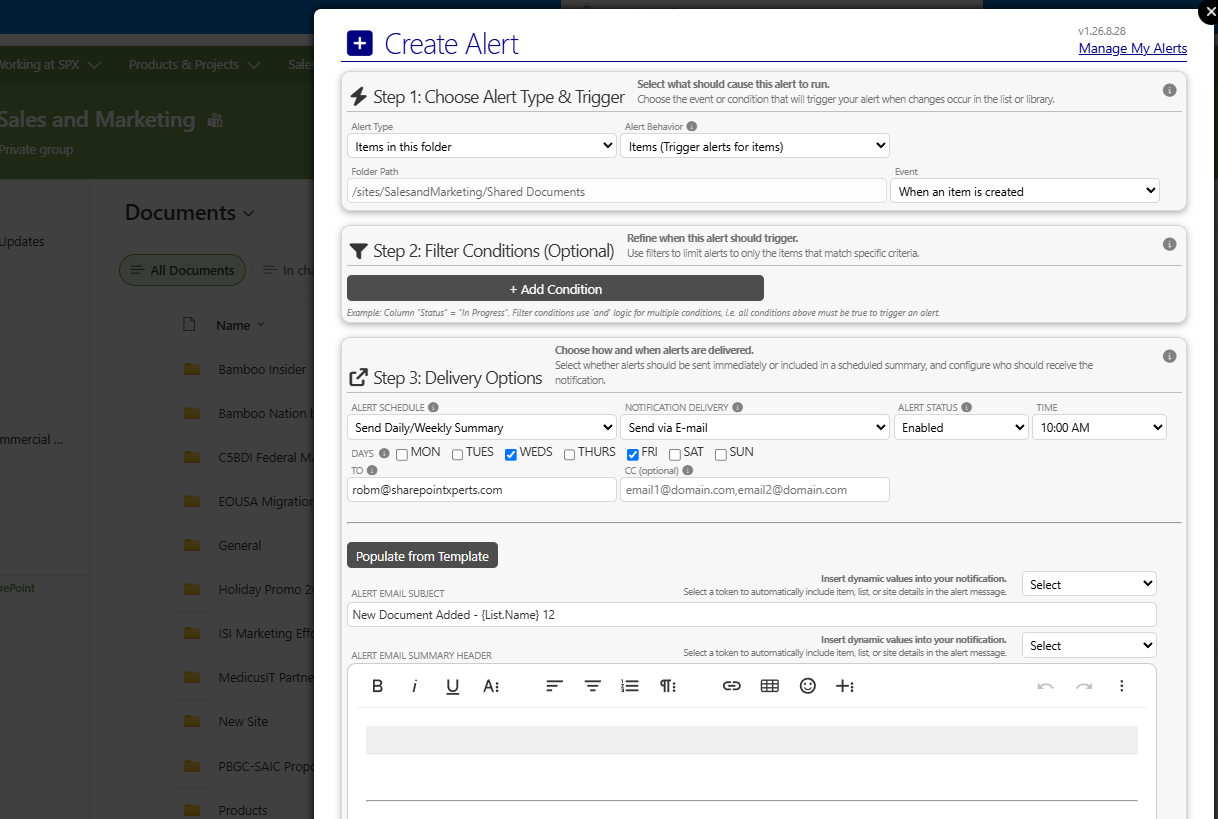
Alert Plus Enterprise Subscription

SharePoint

Top SharePoint Online Products

Experience greater power and savings by bundling our SharePoint apps and cloud parts.


Alert Plus


Calendar Plus


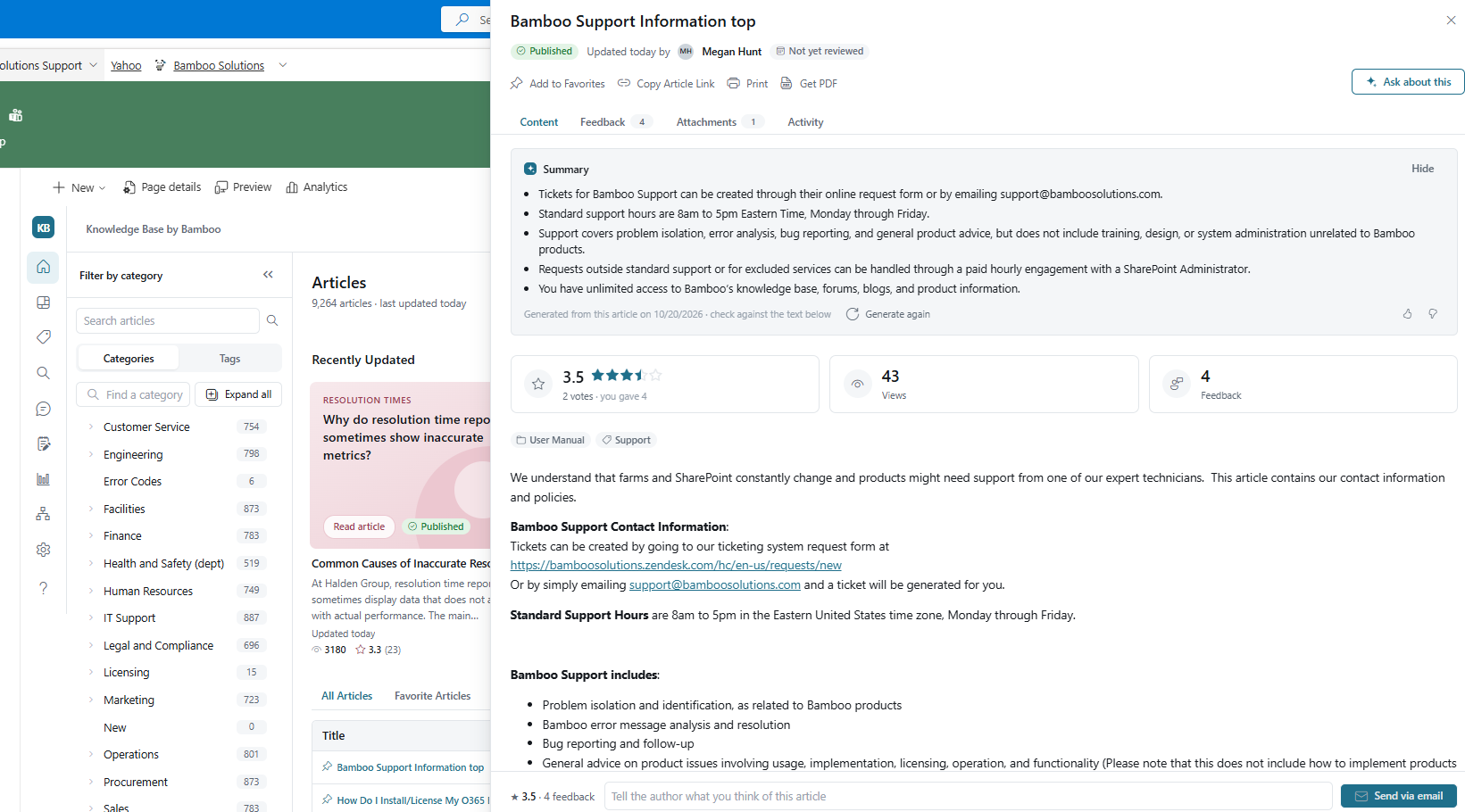
Knowledge Base


Employee Directory Plus


Org Chart Plus


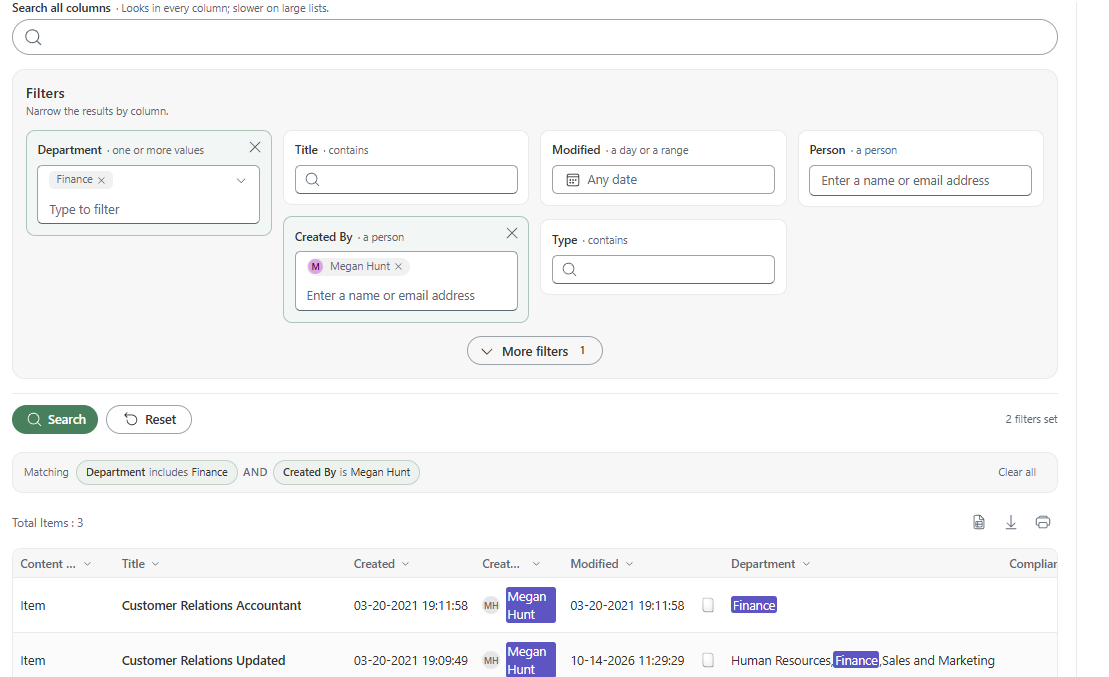
Simple Search


Tabify


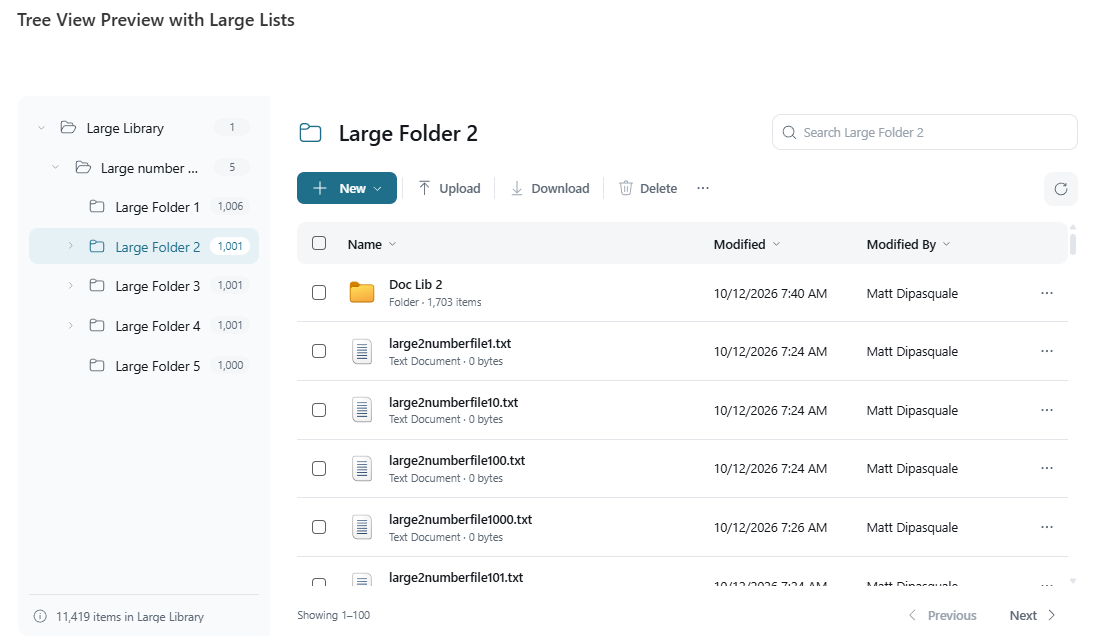
Tree View


View More

On-Premises Only

These web parts extend SharePoint beyond its out-of-the-box capabilities by tailoring it to your requirements with Bamboo Solution’s growing portfolio of SharePoint Web Parts.

SharePoint 2016, 2019, SPSE - Classic Pages Only

View All Products
SharePoint

Top On-Premises Only Products

Experience greater power and savings by bundling our SharePoint apps and web parts.


Calendar Plus


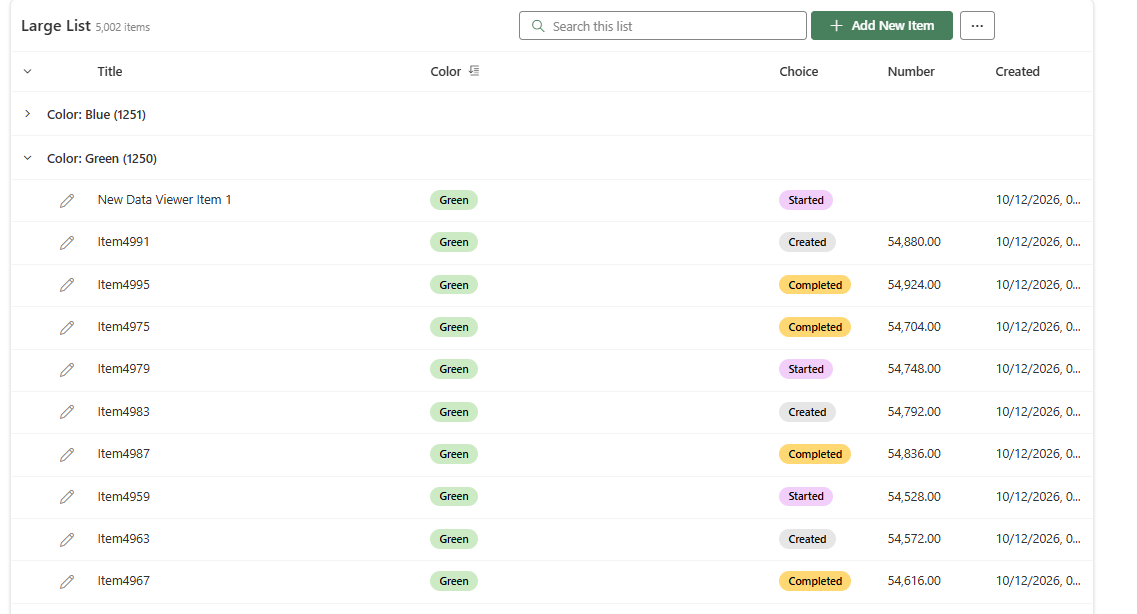
Data Viewer


Password Change


Password Expiration


Password Reset


View More

Our team of Microsoft 365 Technology Consultants helps you get the most out of your Microsoft technology, we have the best Microsoft 365 talent to streamline your organization.

M365 On-Call

On-Demand Microsoft 365 & Power Automate Expertise

Learn More

M365 Plus

Managed Services

Learn More
Microsoft 365

Accelerated Scheduling


Scheduling for Aviation

Scheduling for Home Health


Scheduling for Deliveries


Scheduling for Emergency Personnel

View More

Our Consultants Have What You Need

View All Services

Federal Contractors

GCC Migration Support
Microsoft 365

Our Consultants Have What You Need


Microsoft 365 Enablement


M365 Portals / Intranets


Microsoft 365 Security Configuration


Power Automate


Power Apps


Modern Forms


View More
Bamboo Solutions
  • Products
  • Services
  • Migrations
    • Migration to Microsoft 365
    • GCC Government Community Cloud
    • Migration Center of Excellence
  • Federal Consulting Services
    • Government Services Price List
  • About
    • Blog
    • Webinars & Events
    • Resources
    • Careers
    • Bamboo Partner Network Program
  • Support
    • M365 Art of the Possible
    • Request Support
    • Enterprise Product Support Plan
    • M365 Plus Program
    • SharePoint Online Product Documentation
    • SharePoint On Premises Product Documentation
  • My Account
  • My Cart
  • Contact Us
Select Page

How to Connect SQL Server 2012 when Configuring Data-Viewer Web Part

by Thy Quach | Jun 11, 2013 | Products, SharePoint Solutions, The Bamboo Team Blog

Bamboo Solutions | Ohio Tobacco Use Prevention and Control Foundation Selects Bamboo Solutions Grant Management Software

How to Connect SQL Server 2012 when Configuring Data-Viewer Web Part

When configuring data in the tool pane of the Bamboo Data-Viewer Web Part with a connection to a Data Source in a SQL Server Table or View, you will see two options for this function:

1.     Current Login Account – Standalone Deployment

2.     Login Account – Remote SQL Server

I select the Login Account – Remote SQL Server option and, although I have configured all conditions exactly, it cannot connect to the database. You will see a big error show up in the tool pane as pictured below:

This article will guide you on how to remote into SQL server 2012 when configuring Data-Viewer Web Part.

Step-by-step

First, go to the Microsoft SQL Server program, and right-click on the root node. Select the Security tab, and check the Failed logins only radio button.

Click the OK button:

Next, go to the SQL Server Configuration Manager.

Select SQL Server Services, and make sure that the SQL Server (MSSQL SERVER) is running automatically:

Under SQL Native Client node, select Client Protocols and enable for Shared Memory, TCP/IP, and Name Pipes:

Under SQL Server Network Configuration node, select Protocols for MSSQL SERVER -> enable for Shared Memory and Name Pipes:

Under SQL Native Client 11.0 Configuration, select Client Protocols and enable for Shared Memory, TCP/IP, and Name Pipes:

Finally, go back to the Data-Viewer tool pane, and then connect to SQL with the Custom Login Account – Remote SQL Server.

After clicking the Load Databases button, you will see that Database Name and Table Name have loaded:

Now, we can see data displayed on the Web Part as pictured below:
Blog Categories

  • AI Agents (3)
  • Alert Plus (8)
  • Cyber Security (7)
  • data migration services (11)
  • Emoji (2)
  • Employee Spotlight (33)
  • Events (158)
  • In the News (64)
  • Microsoft (61)
  • Microsoft AppSource Product Update (3)
  • Microsoft SharePoint Bloggers (27)
  • Midshare (1)
  • Office 365 (60)
  • Pentalogic (1)
  • PowerApps (12)
  • Press Release (73)
  • Product Updates (141)
  • Products (334)
  • SharePoint 2010 (173)
  • SharePoint 2013 (257)
  • SharePoint Blank (47)
  • SharePoint Experts (207)
  • SharePoint for Administrators (32)
  • SharePoint for Project Management (20)
  • SharePoint Solutions (255)
  • SharePoint Term Store (3)
  • SharePointXperts (195)
  • SPFx (3)
  • The Bamboo Team Blog (1,393)
  • The Bottom-Line PM: A Realists's Guide to SharePoint and Microsoft Project (25)
  • The Business of SharePoint (25)
  • Year-End Review (4)
Bamboo Solutions and its related brands is the copyright of SharePointXperts, LLC. ©2002–2026 | Privacy Policy | Terms of Use | Sitemap