SharePoint Online

The cloud parts are functional components that extend your SharePoint Online environment in Microsoft 365.

Supports Modern sites for SharePoint Online/Microsoft 365

View All Products

Small Business Pricing and Discounts

Learn More

Subscription Pricing

Web Part Subscription
Alert Plus Enterprise Subscription

SharePoint

Top SharePoint Online Products

Experience greater power and savings by bundling our SharePoint apps and cloud parts.


Alert Plus


Calendar Plus


Knowledge Base


Employee Directory Plus


Org Chart Plus


Simple Search


Tabify


Tree View


View More

On-Premises Only

These web parts extend SharePoint beyond its out-of-the-box capabilities by tailoring it to your requirements with Bamboo Solution’s growing portfolio of SharePoint Web Parts.

SharePoint 2016, 2019, SPSE - Classic Pages Only

View All Products
SharePoint

Top On-Premises Only Products

Experience greater power and savings by bundling our SharePoint apps and web parts.


Calendar Plus


Data Viewer


Password Change


Password Expiration


Password Reset


View More

Our team of Microsoft 365 Technology Consultants helps you get the most out of your Microsoft technology, we have the best Microsoft 365 talent to streamline your organization.

M365 On-Call

On-Demand Microsoft 365 & Power Automate Expertise

Learn More

M365 Plus

Managed Services

Learn More
Microsoft 365

Accelerated Scheduling


Scheduling for Aviation

Scheduling for Home Health


Scheduling for Deliveries


Scheduling for Emergency Personnel

View More

Our Consultants Have What You Need

View All Services

Federal Contractors

GCC Migration Support
Microsoft 365

Our Consultants Have What You Need


Microsoft 365 Enablement


M365 Portals / Intranets


Microsoft 365 Security Configuration


Power Automate


Power Apps


Modern Forms


View More
Bamboo Solutions
  • Products
  • Services
    • Migration to Microsoft 365
    • GCC Government Community Cloud
    • Migration Center of Excellence
  • About
    • Blog
    • Webinars & Events
    • Resources
    • Careers
    • Bamboo Partner Network Program
  • Support
    • M365 Art of the Possible
    • Request Support
    • Enterprise Product Support Plan
    • M365 Plus Program
    • SharePoint Online Product Documentation
    • SharePoint On Premises Product Documentation
  • My Account
  • My Cart
  • Contact Us
Select Page

SharePoint Search Query Returning Unexpected Results? Check Your Metadata Property Mappings

by John Anderson | May 4, 2011 | SharePoint Blank

Bamboo Solutions | Ohio Tobacco Use Prevention and Control Foundation Selects Bamboo Solutions Grant Management Software

Today’s episode of SharePoint Blank will be unlike any post that’s appeared in this space previously. You see, many the time, I’ve gone into “the mailbag” to pluck a question that allows me to kick off an investigation into learning (and sharing) the answer to the question that had been posed. Today, however, I’d like to hand the reins over to a friend to tell his tale of a SharePoint mystery he’d tripped across… and how he went on to solve that mystery.

A couple of months ago, my friend Bryon Jordan, an IT Analyst/Project Manager in Louisville, KY, dropped me an email informing me that his organization was deploying SharePoint, and he was seeking some recommended resources to help get up to speed on the platform. Well, the other day, I heard from Bryon again, and this time he wanted to share an excellent nugget of SharePoint information that he’d discovered. I thought that Bryon’s discovery (and his telling of it) made for such a great SharePoint story that I wished the discovery had been my own so that I could blog it here … and then I realized, hey, it’s my blog, so if I want to invite a friend to share his own SharePoint Blank-esque tale of discovery in this space, nothing is stopping me from doing so. And so, without further ado, I’m going to get out of Bryon’s way now and let him bring the knowledge…

“I had an exciting SharePoint 2007 experience that I finally solved and thought I’d share it with you.  It may be an old hat to you now, but it took a lot of investigating to solve it. It’s funny how no amount of reading ever prepares you as well as rolling up your sleeves and getting your hands dirty.

We create folders for patients using a six-digit number (HIPAA requirements to keep patient confidentiality). Each document in the folder begins with the same number; thus, folder 123456 has any number of documents with names that begin with “123456,” as well as other identifiers to give it a unique name.

When I searched for certain patients (based on their unique identifier), however, information pertaining to other patients also popped up in the search.

I’ve used two fictional patient numbers to illustrate the issue in the following example.

Patient ID 159763 would show six documents in the search results when there were supposed only to be five (not including the parent folder). There was an extra document belonging to patient ID 311789 popping up in the search results that did not have that number at all, although, for some reason, the properties reflected 159763 in the search.

It turns out that SharePoint indexes a lot more than the file name.

After some research, I went into the DB and started doing queries to see if I could find something in the data that triggered the search to display this other patient’s document.

This was my query hitting the views in the SharePoint DB that turned up all sorts of information:

Select the top 20 docs.Leafname, docstreams.* from docs
INNER JOIN docstreams ON docs.ID = docstreams.ID
WHERE docs.LeafName Like ‘311789%’ order leafname

As it turns out, the size of the other patient’s document showing up has a value of 159763 in the field docstreams.size.  At least now I know why we have a handful of these unexpectedly popping up throughout our search results.

Better yet, I was able to find a solution to our dilemma.

In Central Administration, go to Shared Services -> Search Settings and click on Metadata Property Mappings.

Scroll down to the “Size” property and click the right-hand column that links to its mapping.

A check box on the bottom right-hand side of the screen named Include values for this property in the search index.

You want to uncheck this.  Once you’ve done  so, the change apparently takes effect once you re-crawl.”
Blog Categories

  • AI Agents (3)
  • Alert Plus (8)
  • Cyber Security (7)
  • data migration services (11)
  • Emoji (2)
  • Employee Spotlight (33)
  • Events (158)
  • In the News (64)
  • Microsoft (61)
  • Microsoft AppSource Product Update (3)
  • Microsoft SharePoint Bloggers (27)
  • Midshare (1)
  • Office 365 (60)
  • Pentalogic (1)
  • PowerApps (12)
  • Press Release (73)
  • Product Updates (141)
  • Products (334)
  • SharePoint 2010 (173)
  • SharePoint 2013 (257)
  • SharePoint Blank (47)
  • SharePoint Experts (207)
  • SharePoint for Administrators (32)
  • SharePoint for Project Management (20)
  • SharePoint Solutions (255)
  • SharePoint Term Store (3)
  • SharePointXperts (195)
  • SPFx (3)
  • The Bamboo Team Blog (1,393)
  • The Bottom-Line PM: A Realists's Guide to SharePoint and Microsoft Project (25)
  • The Business of SharePoint (25)
  • Year-End Review (4)
Bamboo Solutions and its related brands is the copyright of SharePointXperts, LLC. ©2002–2026 | Privacy Policy | Terms of Use | Sitemap
Bamboo Solutions Knowledge Base product overview

Explore Knowledge Base ↗

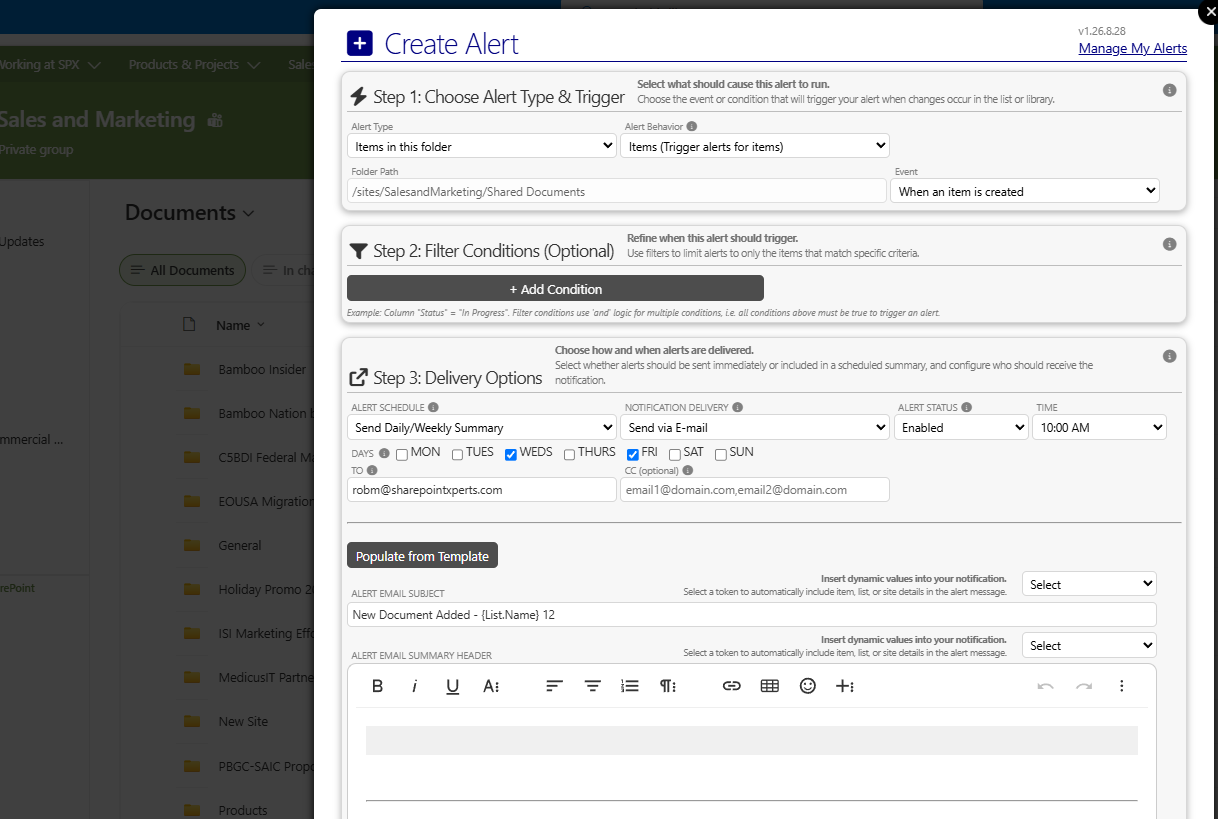
Bamboo Solutions Alert Plus product overviewExplore Alert Plus ↗
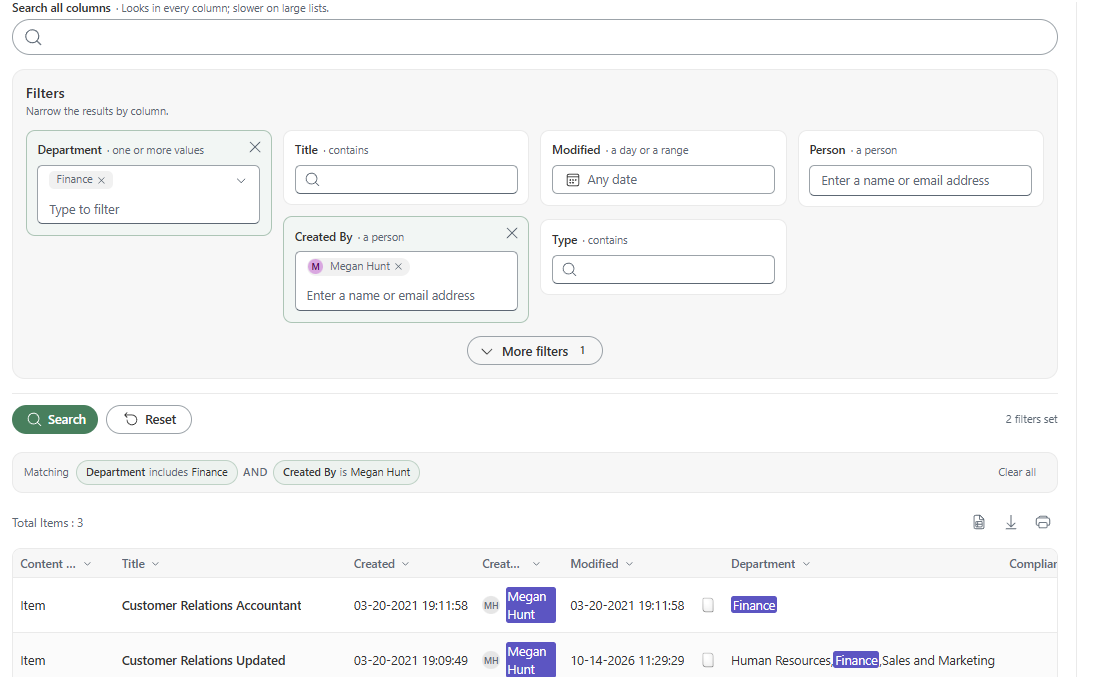
Bamboo Solutions Simple Search product overviewExplore Simple Search ↗
Bamboo Solutions Tabify product overviewExplore Tabify ↗
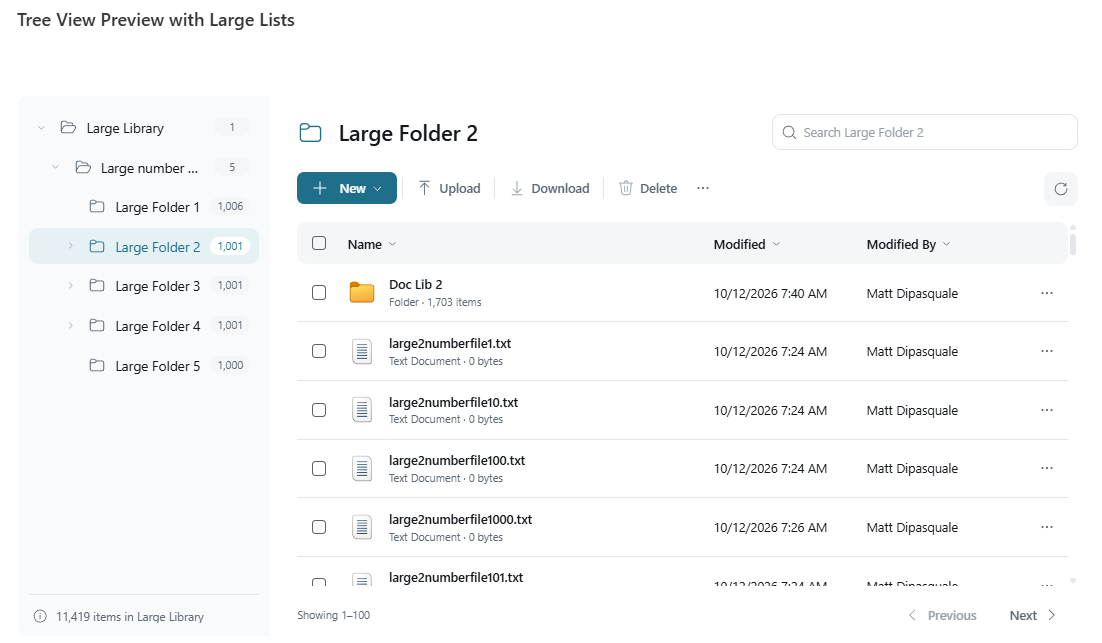
Bamboo Solutions Tree View product overviewExplore Tree View ↗
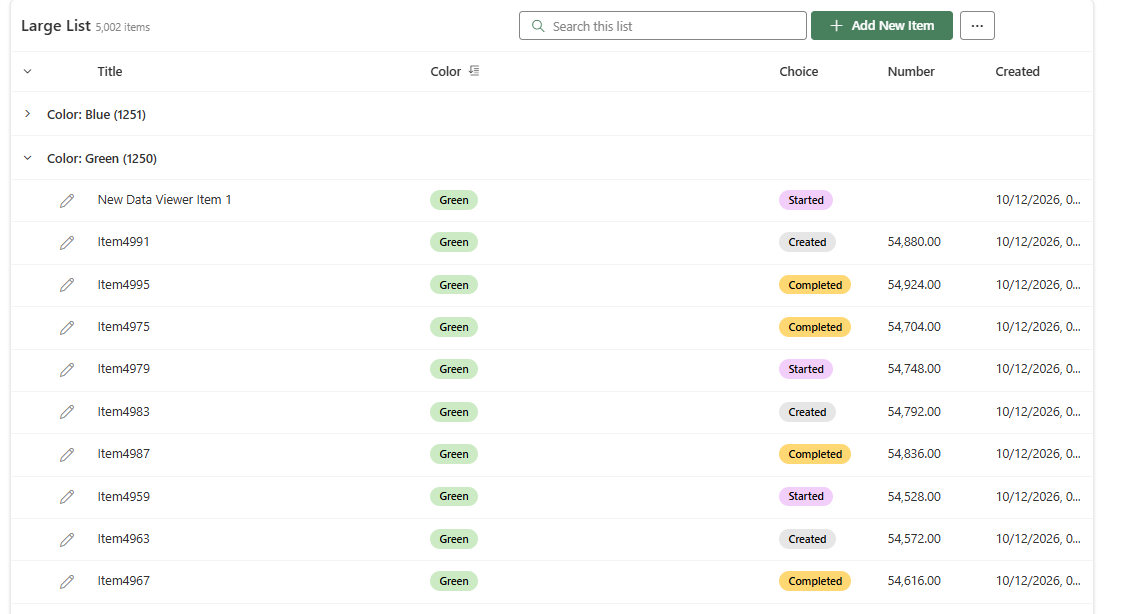
Bamboo Solutions Data Viewer product overviewExplore Data Viewer ↗